You highlighted the important parts of a PDF. Now you need those highlights somewhere you can actually use them.
Copying every highlighted sentence manually can quickly become frustrating, especially when you are working with a long research paper, book, report, or study material.
With Readoku, you can extract highlights from PDF files online and continue working with them instead of starting over.
How to Extract Highlights from a PDF
You can extract your existing PDF highlights with Readoku in just a few steps:
- Open the Readoku PDF Highlight Extractor.
- Upload your highlighted PDF.
- Let Readoku extract your existing highlights and annotations.
- Review and organize the extracted content.
- Export it in the format you need.
Extract Highlights from PDF with Readoku →
More Than a PDF Highlight Extractor
Extracting your highlights does not have to be the end of your reading process.
You can continue working with your PDF in the Readoku Reader.
Edit your existing notes and highlights, add new highlights, write new notes, and keep reading your document.
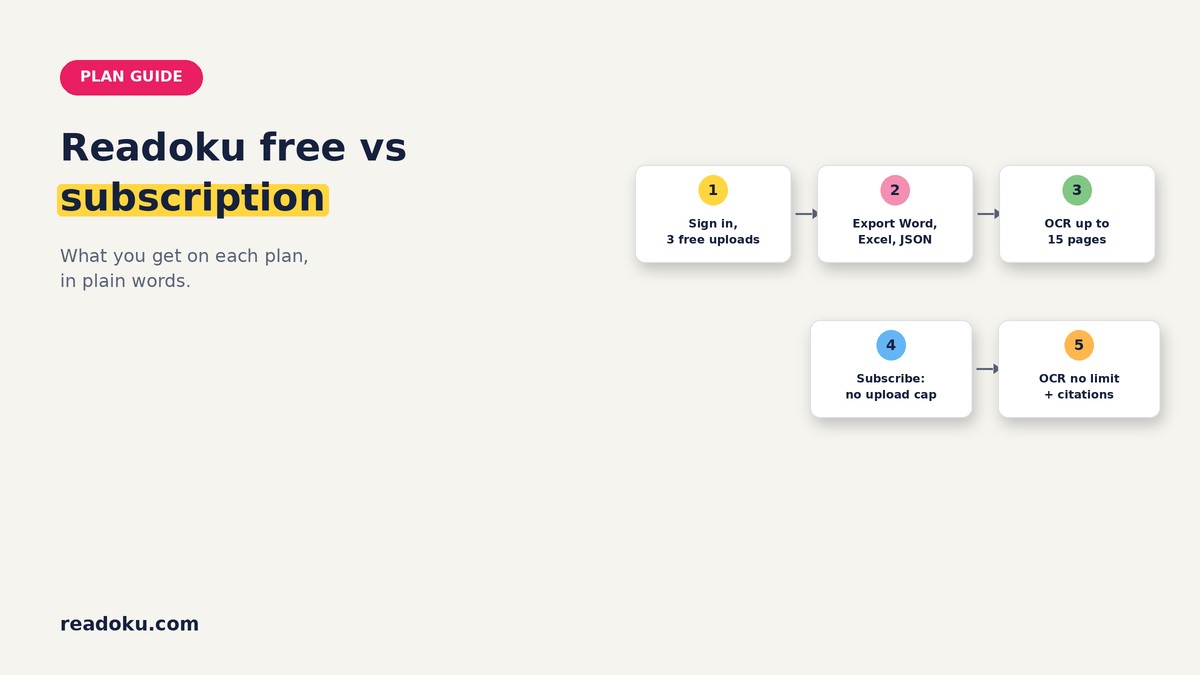
When you are finished, you can export your work into formats such as Word, Excel, Text, or JSON.
So your workflow becomes simple:
Extract → Read → Edit → Add Notes → Organize → Export
Why Extract PDF Highlights?
Think about a 100-page research paper with dozens of highlights.
Without a PDF highlight extractor, you may have to find each passage again and copy it manually into your notes.
Extracting them makes it much easier to turn your reading into something useful.
This can be especially helpful for:
- students creating study notes
- researchers reviewing academic papers
- professionals reading reports
- readers collecting important passages
- anyone working with heavily annotated PDFs
Can You Extract PDF Highlights with Page Numbers?
Keeping the connection between a highlight and its original page can be important, particularly for research and academic reading.
Readoku gives you options for structuring your extracted annotations so that your notes remain useful after they leave the PDF.
You can then continue editing and organizing them before exporting your final work.
Frequently Asked Questions
How do I extract highlights from a PDF?
Upload your highlighted PDF to Readoku. Your existing highlights and supported annotations can be extracted so you can review, organize, edit, and export them.
Can I extract highlighted text from a PDF online?
Yes. Readoku lets you extract highlighted text from PDFs online without manually copying every passage.
Can I edit my highlights after extracting them?
Yes. You can continue working in the Readoku Reader, where you can edit your annotations and add new highlights and notes.
Can I export PDF highlights?
Yes. Readoku supports several export formats, including Word, Excel, Text, and JSON.
Can I add new highlights after extracting my old ones?
Yes. You can continue reading and annotating the PDF, including adding new highlights and notes.
Your Highlights Should Not Stay Trapped in a PDF
You already spent the time deciding what matters.
You should not have to copy everything again.
Use Readoku to extract highlights from your PDF, continue reading and editing your annotations, add new notes, and export your work when you are ready.