Want to export highlighted text from a PDF to Excel without copy-pasting line by line? This guide gets you a clean spreadsheet with one row per highlight, including your comments.
Quick answer
- Open readoku.com/extract-highlights and sign in.
- Upload your highlighted PDF.
- Filter by colour or type if you only need some highlights.
- Open the Excel tab and download the .xlsx file.
What will the Excel file look like?
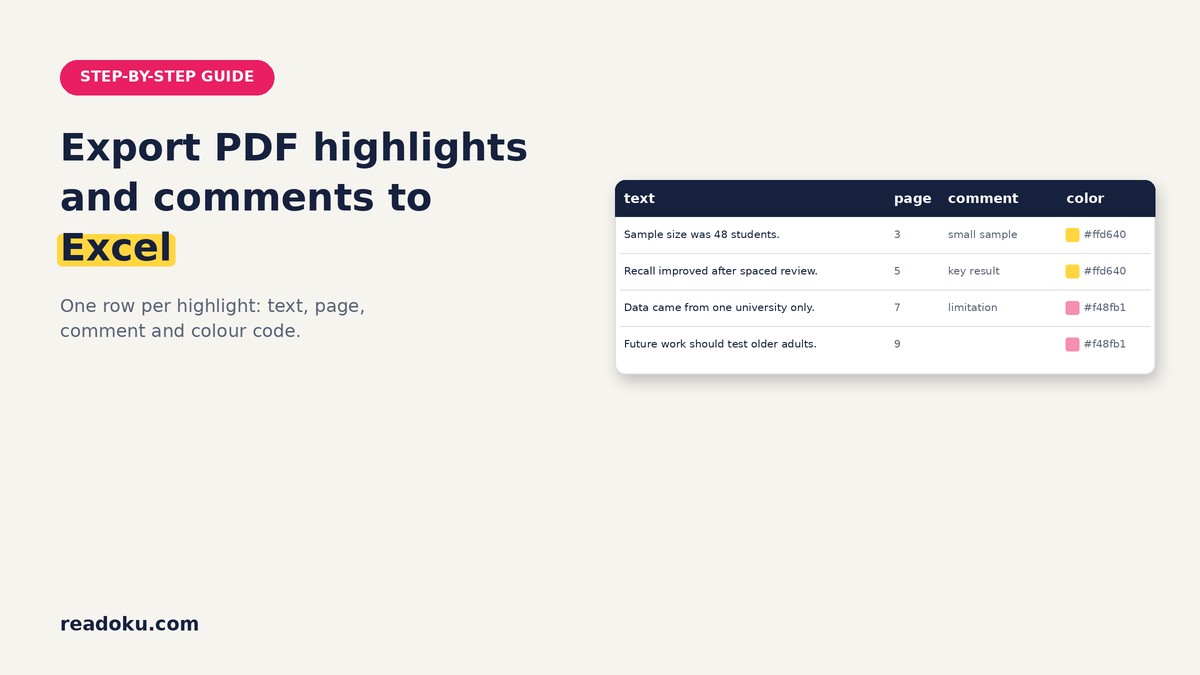
Each highlight becomes one row with four columns:
- text: The highlighted passage
- page: The page number
- comment: The note attached to that highlight
- color: The highlight colour as a hex code, e.g. #ffff00
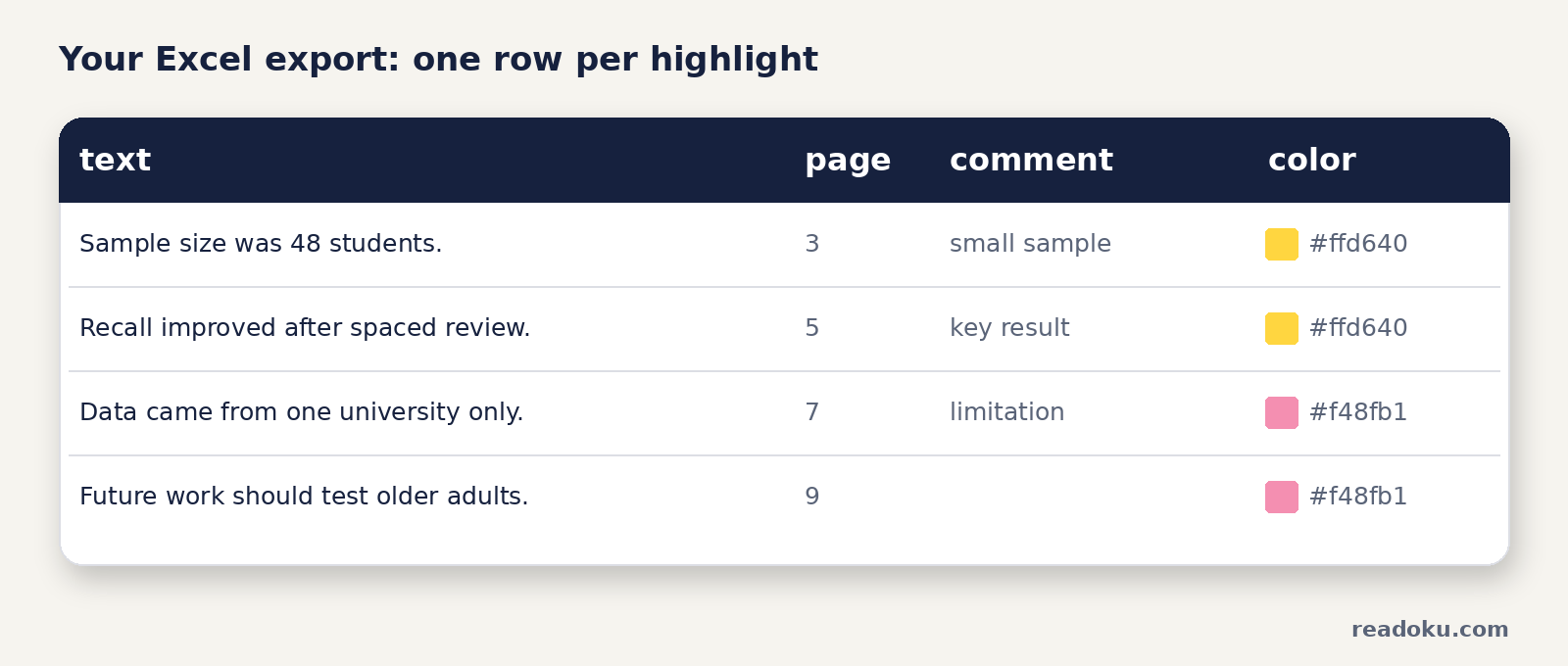
The rows above are a fictional example.
How do you export PDF comments to Excel, step by step?
- Save your highlighted PDF. Your highlights and comments must be stored in the file. Most PDF readers do this when you save.
- Sign in and upload. Go to the Extract Highlights page, sign in and upload the PDF. You can add several PDFs at once.
- Filter what you need. Pick colours, or types like Highlight, Underline, Strikeout or Comments. Skip this to keep everything.
- Set your options. Turn page numbers and comments on or off.
- Download the spreadsheet. Open the Excel tab and download. Several PDFs come as one ZIP download.
Which comments are exported, and which are not?
- Exported: comments attached to a highlight, underline or strikethrough.
- Not exported: standalone sticky notes placed somewhere on the page.
Tip: want a note in your spreadsheet? Add it as a comment on the highlight itself, not as a separate sticky note.
What can you do with the spreadsheet?
- Sort by colour code. If yellow means "key claim" and pink means "method", sorting the color column groups them. Need a colour code? Try the 4-color PDF highlighting system.
- Add a paper column. When you combine exports from several PDFs, add a column with author and year. A pivot table then shows highlights per paper.
- Build a literature matrix. Follow how to build a literature review matrix from PDF highlights.
The color column holds a hex code, not a colour name, and the cells are not coloured. Two shades of yellow give two different codes, so stick to a few clear colours.
Is your PDF scanned or marked with a real highlighter?
Tick "Apply OCR for scanned or pen highlighted PDFs." before you upload. OCR finds yellow and pink marker and reads the text under it. It does not return comments. See how to extract highlighted text from a scanned PDF.
Common mistakes
- Writing notes as sticky notes instead of comments on the highlight
- Closing the PDF without saving your highlights
- Using five almost identical shades of yellow
Good to know
- Sign-in required. Free accounts get 3 uploads in total. There is no free trial.
- Formats: Word, Excel, JSON, Text and copy to clipboard. There is no CSV export.
- Free accounts can OCR PDFs up to 15 pages; subscribers have no page limit.
- Price: EUR 2/month or EUR 12/year (EUR 1/month, 50% off), with a 14-day refund.
FAQ
Can I export PDF comments to Excel online?
Yes. Readoku runs in your web browser. Sign in, upload your PDF and download the .xlsx file.
Does the Excel export keep the highlight colour?
Yes, as a hex code in the color column. The cells themselves are not coloured.
Is there a CSV export?
No. Readoku exports Word, Excel, JSON and Text. Most spreadsheet apps can save an Excel file as CSV if you need one.
Is there a column for the highlight type?
No. To keep underlines and highlights apart, filter by type and export each type separately.
Try it with your next paper
Upload one highlighted PDF and get your spreadsheet in a few clicks. Working through many papers? The EUR 12/year plan takes you past the 3 free uploads.