You highlighted the chapter carefully. Then you scanned it at the library, or a classmate sent a photocopied handout, and suddenly your highlights are just coloured pixels. A normal PDF highlight extractor sees nothing, because there is no annotation to read. Retyping every marked passage costs an evening you don't have.
That gap is common. In a survey of 10,293 university students in 21 countries, 78.44% preferred print for academic reading, and students said they highlight and annotate more on paper (Mizrachi et al., PLOS ONE, 2018). Paper is where many of us think best. The problem starts when those marked pages need to become notes, quotes and citations.
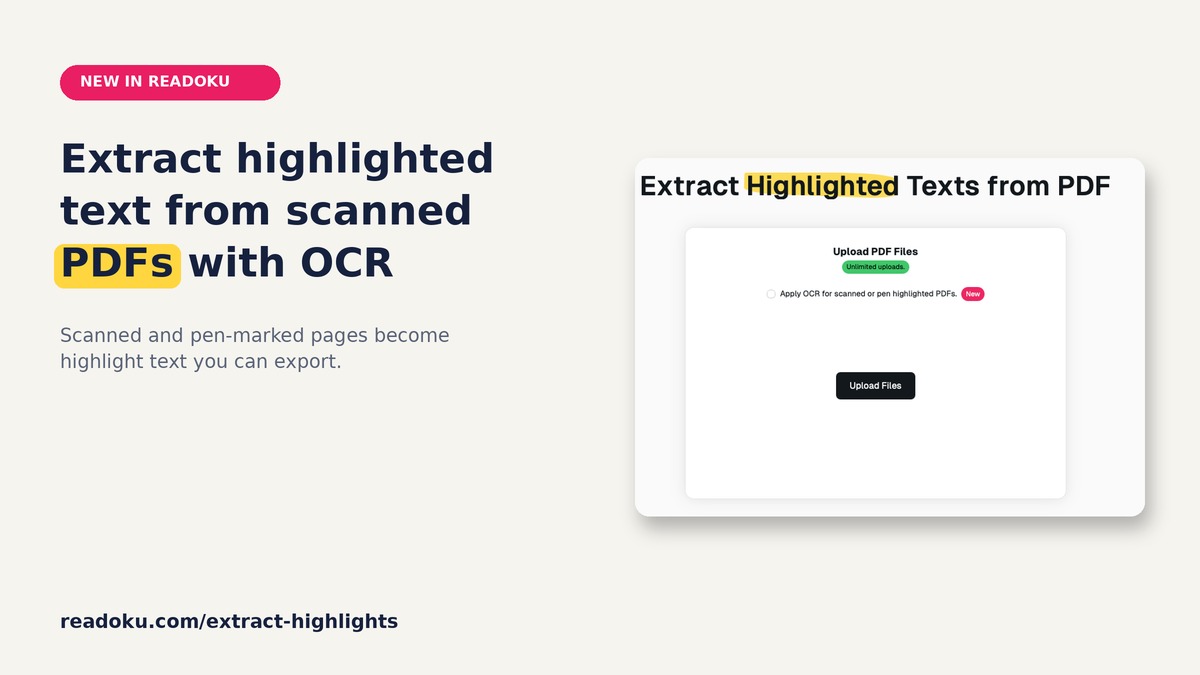
Readoku now has a new option for exactly this case: OCR for scanned or pen-highlighted PDFs.
What the new OCR option does
On the Extract Highlights page you'll find a checkbox above the upload button: "Apply OCR for scanned or pen highlighted PDFs." Leave it unchecked for normal digital PDFs. Tick it when your highlights are part of the page image instead of real PDF annotations.
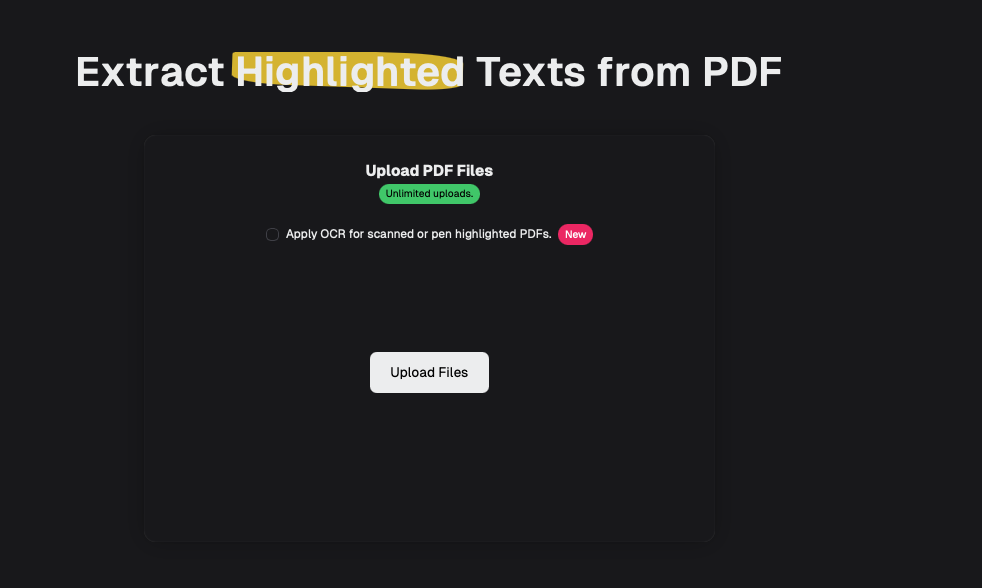
With OCR switched on, Readoku:
- Renders each page of your PDF as an image.
- Finds marker colour. It looks for yellow and pink highlighter on the page and keeps light and strong yellow apart, so two shades of yellow can still mean two different things.
- Reads the marked words. Where a page has no usable text layer, optical character recognition reads the highlighted words. It supports English and German, and by default it picks the language automatically.
- Returns your passages as normal Readoku highlights, grouped by page, with their colour, ready to export.
The result looks just like a regular extraction. You can filter by colour and export to Word, Excel, JSON or plain text.
When to tick the OCR box
Use OCR when:
- You scanned a book chapter or article after marking it with a highlighter.
- A lecturer handed out photocopies that you marked by hand and digitised later.
- You photographed pages with your phone and saved them as a PDF.
- Your PDF has painted-on highlights. Some apps draw the colour directly into the page instead of saving an annotation, so a standard extractor finds nothing.
Skip OCR when you highlighted a normal digital PDF in a reader app. The standard extractor reads those annotations directly.
A 4-step workflow: from marked paper to usable notes
1. Scan for clean results
OCR is only as good as the image. A few habits help:
- Scan flat and straight. Curved book spines distort the lines near the gutter.
- Use good, even light and avoid shadows across the page.
- Choose a sharp, readable resolution. Blurry text gives blurry results.
- Highlight with clear yellow or pink. Very faint marker strokes are harder to detect.
2. Upload with OCR switched on
Go to readoku.com/extract-highlights, tick the OCR checkbox and upload your PDF. You don't need to choose a language: English and German are detected automatically.
3. Check every quote against the page
This step is non-negotiable in academic work. OCR reads printed letters, not meaning, and it can misread a character, especially on poor scans, small print or hyphenated words. Before a sentence goes into your thesis as a direct quotation, compare it with the original page. The page number in your export makes that quick.
Getting the wording exactly right protects you from accidental misquotation. For more on keeping quotes and your own words apart, see our guide on how to paraphrase without plagiarizing.
4. Turn highlights into study or research material
Once the text is out of the page image, it works like any other set of highlights:
- For exams: turn each passage into a question and answer it from memory. Our guide to turning textbook PDF highlights into active-recall study notes shows how.
- For a thesis or seminar paper: export to Excel and sort passages by colour and page, for example strong yellow for key claims, light yellow for supporting detail and pink for methods or open questions.
Tips for colour coding on paper
Because light and strong yellow come out as separate colours, you can plan a simple system before you start reading:
- Strong yellow: the core argument or a definition you will cite.
- Light yellow: evidence, examples and numbers.
- Pink: questions, criticism, or anything to follow up.
Keep the system small. Three meanings you actually use beat eight you forget halfway through the semester.
What to know before you start
- Free accounts: OCR works on PDFs of up to 15 pages.
- Subscribers: no page limit on OCR.
- Colours: yellow (light and strong) and pink. Other marker colours are not detected by OCR.
- Languages: English and German, with automatic detection.
- Processing: OCR runs on Readoku's own servers. Your pages are not sent to an outside OCR service.
- Very long scans can take a while. If processing stops before the end of a document, Readoku shows a short notice so you know the result is incomplete.
Try it on your next scanned reading
If you have a folder of scanned chapters or a stack of marked handouts, start with one. Upload it with OCR switched on, check the extracted passages against the page, and export them in the format you write in.
Extract highlighted text from your scanned PDF with Readoku
Need OCR for PDFs longer than 15 pages? A Readoku subscription removes the limit, so you can run OCR on full chapters and course packs.