You finished the paper. Forty highlights, a few sticky notes, and a clear sense of what matters. Now you need that text in your notes, your draft, or your literature review, and the obvious tool, Adobe Acrobat Pro, wants a subscription before it will help.
The good news: you do not need Acrobat Pro to get your highlighted text out of a PDF. Here are the free options, a before/after example, and a repeatable workflow.
Why Copy-Paste Breaks Down
Copying highlights one at a time works for a single quote. It falls apart for a full reading session:
- You lose page numbers, so citing later means hunting through the PDF again.
- Line breaks and hyphenation from the PDF layout come along with every paste.
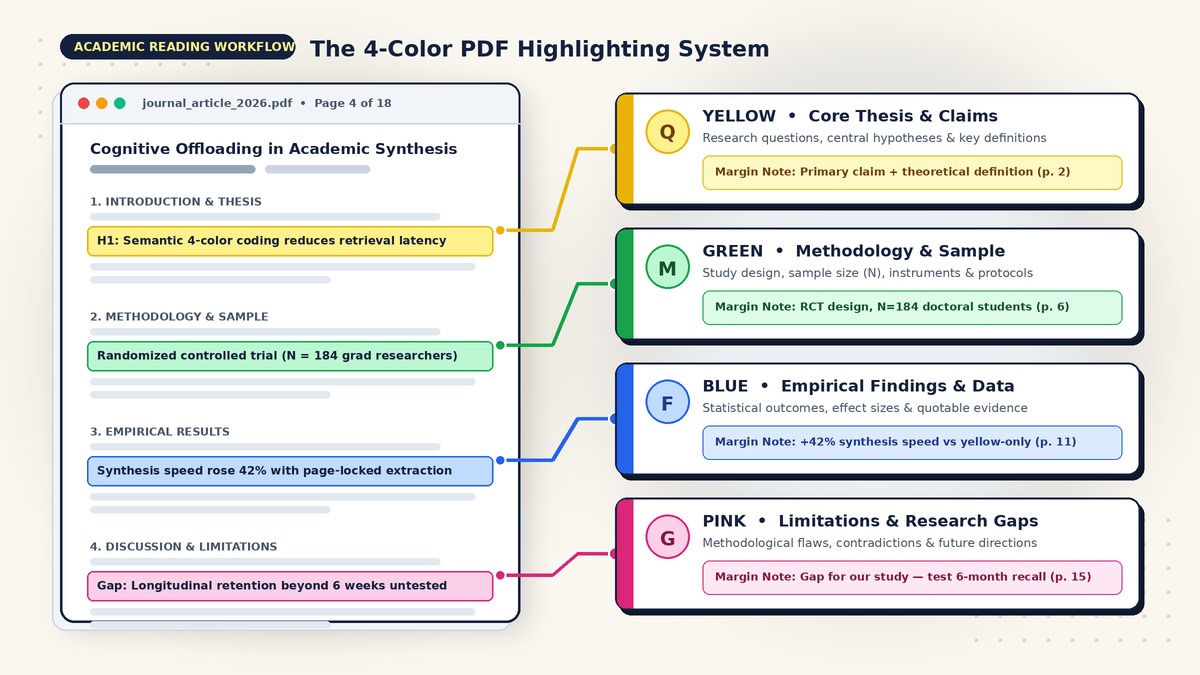
- Your color coding disappears, so you can no longer tell a key finding from a method note.
- Comments and sticky notes stay buried inside the file.
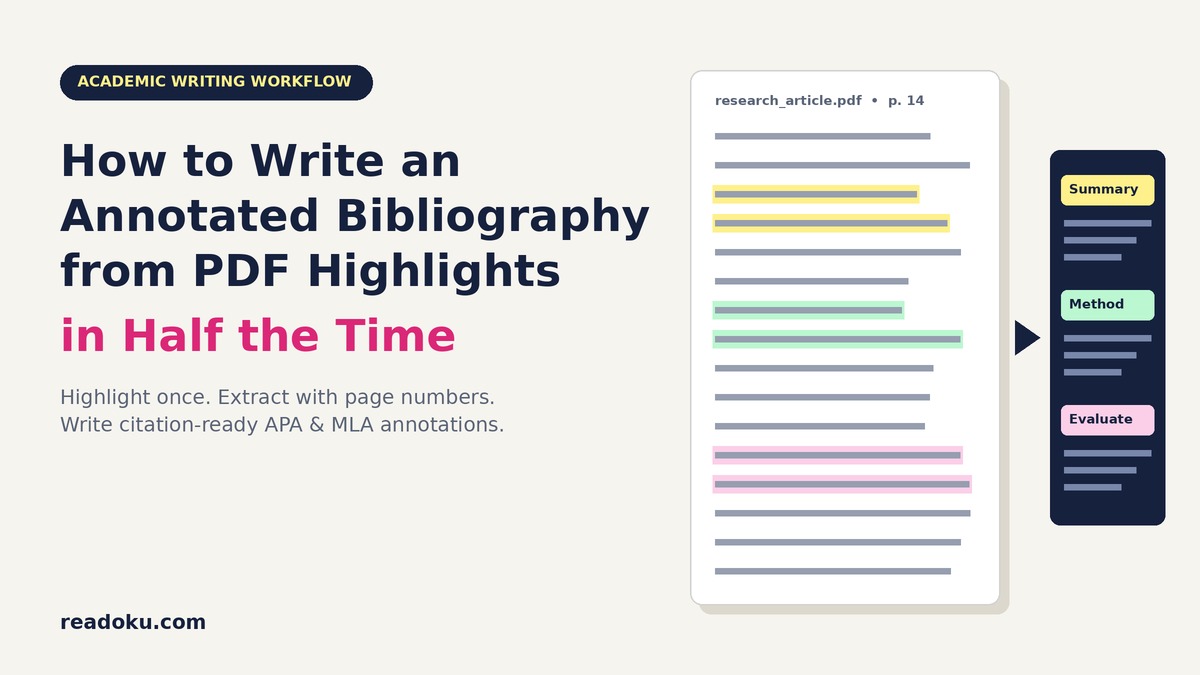
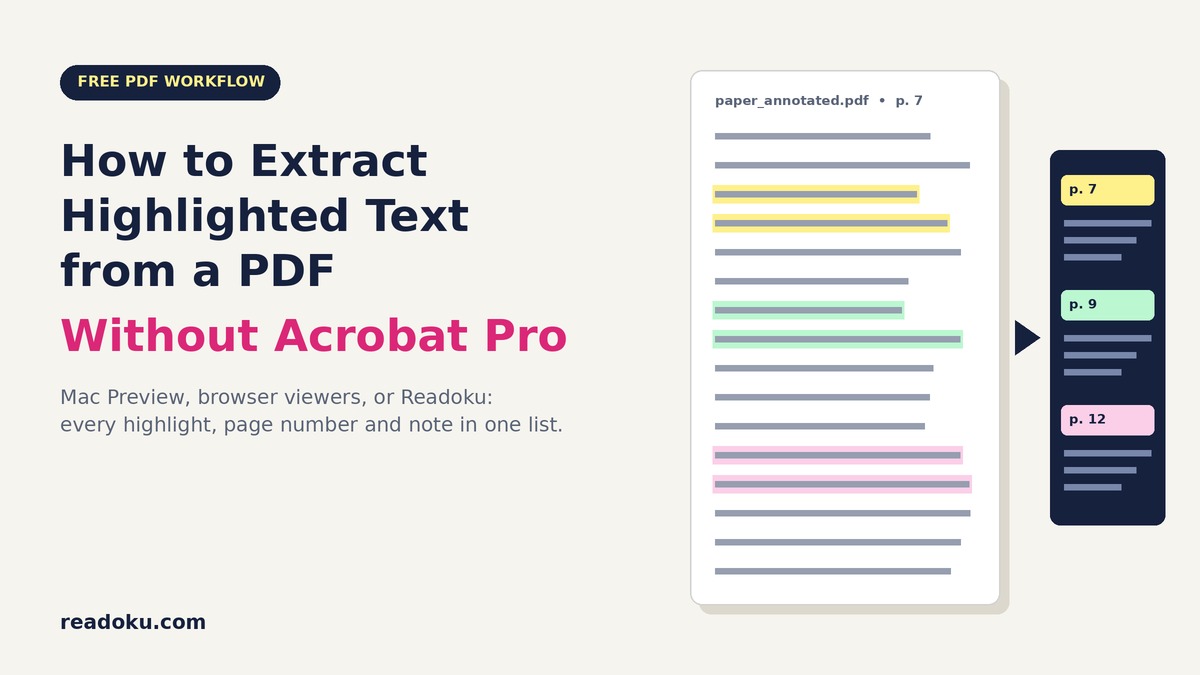
What you want is one clean list: every highlight, its page, its color, and any note you attached.
Before and After: A Real-World Example
Before (what you get by copy-pasting from a two-column article):
Participants who used retrieval prac-
tice outperformed the re-reading
group on the delayed test (see Fig-
ure 2).
No page number. Broken words. No idea which highlight color it was or what you thought when you marked it.
After (what a proper extraction gives you):
p. 7 · Yellow (Key finding) "Participants who used retrieval practice outperformed the re-reading group on the delayed test." Note: Supports my argument in section 2. Compare with the 2019 replication.
That second version can go straight into a draft, a literature review matrix, or your reference manager notes.
Free Options Compared
1. Mac Preview
Preview can highlight in several colors and add notes. Open the sidebar with View → Highlights and Notes to see a list of your annotations.
Good for: reviewing what you marked on a Mac without installing anything. Limits: there is no one-click export of all highlighted text to a document. You still copy entries by hand, and page numbers and colors do not travel with the text. It is also Mac-only.
2. Browser PDF Viewers (Chrome, Edge, Firefox)
Modern browsers open PDFs directly, and some (such as Edge and Firefox) let you highlight and add simple annotations.
Good for: quick reading and marking on any computer, including Windows and Chromebooks. Limits: browser viewers are built for reading, not exporting. Getting the highlighted text out usually means selecting and copying passages one by one, with the same formatting problems as above.
3. Free Adobe Acrobat Reader
Reader can show your comments in a side panel, which helps you review them.
Good for: people who already use Reader for annotation. Limits: the polished export and summary features people search for are tied to paid Acrobat plans, so the free version often leaves you copying by hand again.
4. Readoku's Browser-Based Extractor
Readoku's PDF Highlight Extractor is built for one job: pulling every highlight and note out of a PDF in a single step. It works in the browser, so it runs on Mac, Windows, and Linux.
Good for: full reading sessions, research papers, and textbooks. What you get: highlighted text with page numbers, the highlight color, and attached notes, ready to copy into Word, Google Docs, Notion, or Markdown. You can even export highlights with their colors intact, so your color system survives the move.
Step-by-Step Workflow (Without Acrobat Pro)
- Highlight in any app you like. Preview, Edge, Firefox, Reader, or a tablet app all work, as long as the highlights are saved as standard PDF annotations in the file.
- Save the PDF. Make sure your annotations are written to the file, not just held in the app. In Preview, use File → Save; in browsers, download or save the annotated copy.
- Open the extractor. Go to readoku.com/extract-highlights and upload the annotated PDF.
- Review the list. Check that every highlight appears with its page number and color. Filter by color if you used a coding system.
- Export where you write. Copy the results into your notes app, a Word document, or a Markdown file.
- Add your thinking right away. While the reading is fresh, write one line per key highlight about why it matters. This is the step that turns highlights into ideas (more on that in From PDF Highlight to Idea System).
For a deeper walkthrough of the extraction itself, see How to Extract Highlighted Text from a PDF and How Can I Extract PDF Highlights Online?.
Quick Troubleshooting
- Nothing shows up after upload? The highlights may not have been saved into the file. Reopen the PDF in the app you used, save again, and re-upload.
- Text looks scrambled? Scanned PDFs are images, not text. Run OCR first so there is real text under your highlights.
- Some colors missing? Check that you used actual highlight annotations, not drawing or underline tools.
Which Option Should You Choose?
| Need | Best free option | |------|------------------| | Review a few highlights on a Mac | Mac Preview | | Read and mark PDFs on any device | Browser viewer | | Get all highlights out with pages and colors | Readoku extractor | | Already annotating in Reader | Reader + Readoku extractor |
The Bottom Line
You do not need an Acrobat Pro subscription to get your highlighted text out of a PDF. Highlight wherever you read best, save the file, and let a dedicated extractor do the tedious part. The result is a clean, cited list of everything you marked, ready for your draft instead of trapped in the PDF.
Try it on your next paper: upload an annotated PDF to Readoku's free PDF Highlight Extractor and see every highlight, page number, and note in one place.