Want to print only the highlighted text in a PDF instead of all 40 pages? The print dialog prints whole pages, not highlights. The fix is simple: pull out your highlights first, then print that short list.
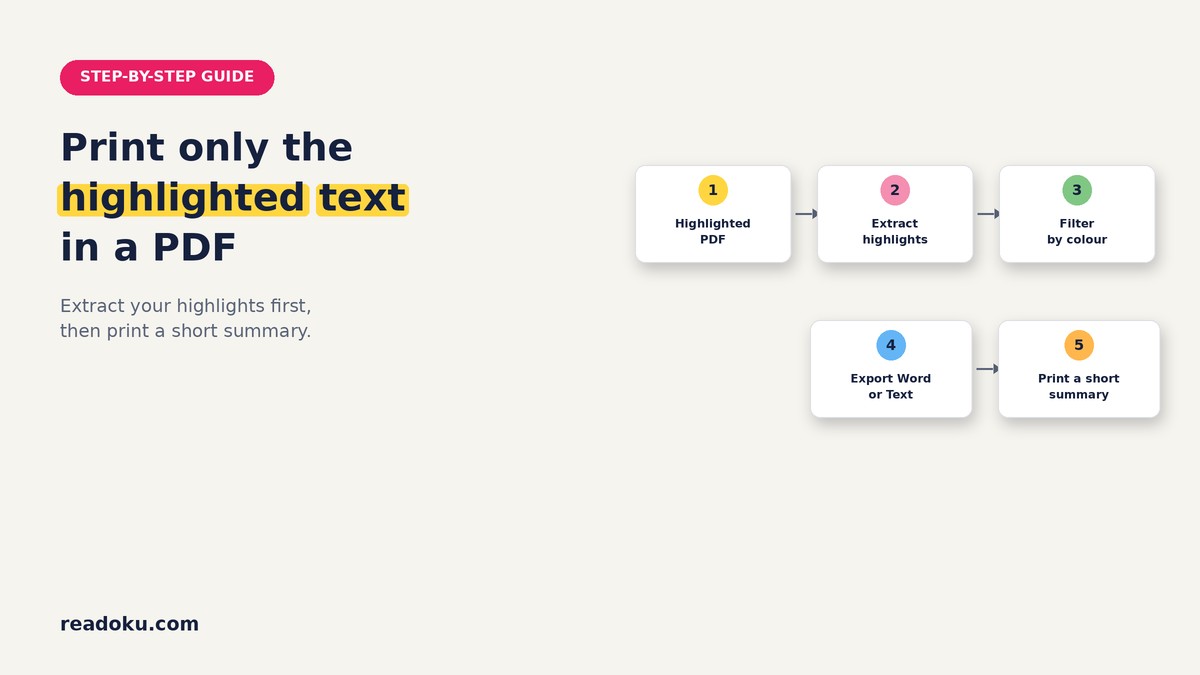
Quick answer
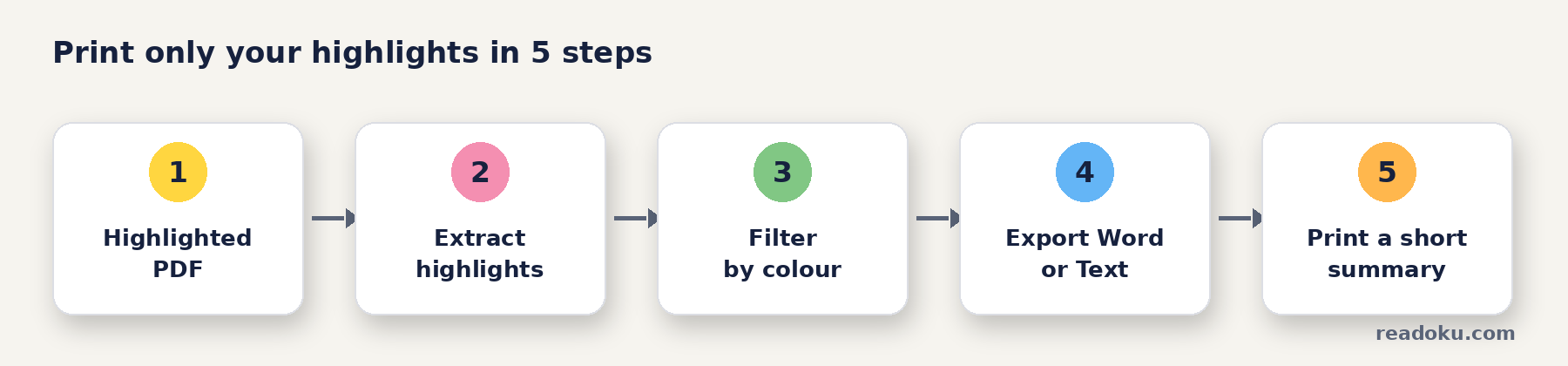
- Open readoku.com/extract-highlights and sign in.
- Upload your highlighted PDF.
- Filter to the colours you want on paper (optional).
- Download the Word or Text export.
- Open the file and print it.
Can you print only highlighted text in a PDF?
Not directly. PDF readers print pages, so every page with a highlight comes out in full. To get only the highlighted text on paper, you need a separate document with just those passages. That is what the export gives you.
How do you print only the highlighted text, step by step?
- Save your highlights. Make sure the highlights are saved in the PDF file.
- Sign in and upload. Go to the Extract Highlights page, sign in and upload your PDF.
- Pick what goes on paper. Filter by colour, for example only the yellow definitions. You can also filter by type: Highlight, Underline or Strikeout.
- Keep page numbers on. Each passage then sits under its page heading, so you can find it again in the PDF.
- Export and print. Download the Word or Text file, open it and print. Readoku does not print by itself and has no PDF export.
How do you print only the pages with highlighted text?
Sometimes you want the full pages, not just the passages. Use the export as a page list:
- Export with page numbers. The Word or Text file shows which pages hold highlights.
- Type the pages into your print dialog. Enter them as a page range, for example 3, 7, 12-14.
- Print. Only those pages come out.
How do you make one revision sheet per colour?
Exam prep works well with short, focused sheets:
- Filter one colour. For example only pink, if pink marks definitions.
- Export and print. That is your definitions sheet.
- Repeat for each colour. Now you have one sheet per topic or type of note.
Then quiz yourself from the sheet instead of rereading it. Our guide to active-recall study notes from textbook PDF highlights shows how. Need a colour plan? See the 4-color PDF highlighting system.
What if the pages are scanned or marked by hand?
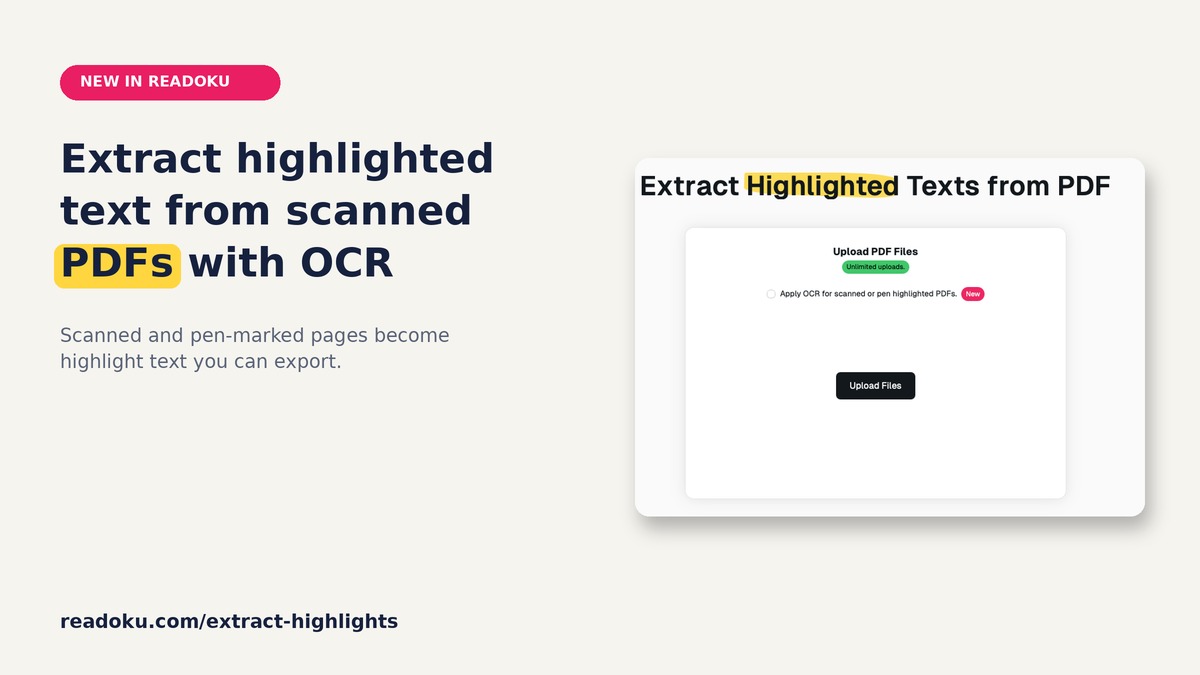
Tick "Apply OCR for scanned or pen highlighted PDFs." before you upload. OCR finds yellow and pink marker and reads the text under it. Check a few lines against the page, since scans can blur letters. More in how to extract highlighted text from a scanned PDF.
Common mistakes
- Printing the whole PDF "just in case"
- Turning page numbers off, then not finding a passage again
- Printing every colour on one long sheet instead of one sheet per colour
Good to know
- Sign-in required. Free accounts get 3 uploads in total. There is no free trial.
- Formats: Word, Excel, JSON, Text and copy to clipboard. There is no PDF export.
- Only comments attached to highlights are exported, not standalone sticky notes.
- Free accounts can OCR PDFs up to 15 pages; subscribers have no page limit.
- Price: EUR 2/month or EUR 12/year (EUR 1/month, 50% off), with a 14-day refund.
FAQ
Why does my PDF reader print the whole page?
Highlights are marks on top of a page, so the print dialog treats them as part of that page. It has no "highlights only" option.
Which export is best for printing?
Word, if you want page headings and colour underlines. Text, if you want a plain and compact sheet.
Can I print my comments too?
Yes. Comments attached to highlights appear under each passage in the Word and Text exports.
Can I print highlights from several PDFs?
Yes. Upload them together and download one ZIP, then print each file.
Print less, review more
Turn your next long PDF into a short sheet you can actually carry around. Studying a whole semester of readings? The EUR 12/year plan takes you past the 3 free uploads.